Registration App Configuration
- James Arbaugh
- Nicolas Piaget
- Mike Seaton
Custom Sections and Fields on the Registration App
The Reference Application includes a built-in Registration app that is configured for a common one-size-fits-all use case. However it is possible to disable the built-in app, and set up your own customized version. For example, you can integrate the address hierarchy module and add additional person attributes. You can see the full list of configuration options in the template definition found at this link, which describes the config fields.
Initial Steps
Follow the basic instructions to disable an App and add a custom App found at System Administration: Manage Apps.
- Navigate to System Administration-->Manage Apps
- Click the square disable button beside "referenceapplication.registrationapp.registerPatient" to disable the integrated Registration App configuration.
- Add a new App Definition by clicking "Add App Definition".
- Give your new App a name, perhaps "referenceapplication.registrationapp.myRegisterPat".
- Copy the latest template for the registration App, found here (note that the square brackets before and after should not be used).
- Paste this into the Definition (required) field.
- Modify the ID to represent the ID you specified in step 4 above. For example, change "id": "referenceapplication.registrationapp.registerPatient", to "id": "referenceapplication.registrationapp.myRegisterPat",
- NB .Ensure your new Id contains a string "registerPatient" say "referenceapplication.registerPatient.MyRegister" as that string wil be required when Generating a comprehensive registration summary ID when you try to acces the Edit registration link to the Registration Summary Page see here
- Modify the URL line to represent the ID you specified in step 4 above. For example, change "url": "registrationapp/registerPatient.page?appId=referenceapplication.registrationapp.registerPatient", to "url": "registrationapp/registerPatient.page?appId=referenceapplication.registrationapp.myRegisterPat",
- If you prefer, you can change the "description" and "label" fields to your liking, for example, name them in your language. You can also change the icon and order to your liking.
Save the new App configuration.
Notes:
- If you have a syntax error, it will give you an error "Invalid Json", and not let you save it until fixed.
- If you didn't change the App ID in the Json, it will give you an error "The App ID should match the one in the definition" when you try to save it.
- If the App name is too long, it will give you an error like, "Failed to save referenceapplication.registrationapp.myRegisterPatient", and not let you save it.
Add Person Attributes
To add a person attribute follow these simple additional steps after completing the Initial Steps above.
- Find the UUID of the Person Attribute Type (s) that you want to add to the Registration App.
- Go to System Administration --> Advanced Administration --> Manage Person Attribute Types
- Click on the name of the Person Attribute, for example "Mother's Name".
- You will find the UUID listed in grey, for example... 8d871d18-c2cc-11de-8d13-0010c6dffd0f
- Open the App you created in the Initial Steps above.
In the list of sections you can add a new section, or you can simply add the person attribute to an existing section. Sections and fields are separated with a comma. The code to add a question of Mother's Name is...
Mother Name Person Attribute Field{ "type": "personAttribute", "label": "Mother's Name", "formFieldName": "mothersName", "uuid": "8d871d18-c2cc-11de-8d13-0010c6dffd0f", "widget": { "providerName": "uicommons", "fragmentId": "field/text" } }If you want to add the question in a section of it's own, you would use something like this, placed in the list of sections...
Person Attribute in own section{ "legend": "My Person Attribute", "id": "myPersonAttributeLabel", "fields": [ { "type": "personAttribute", "label": "Mother's Name", "formFieldName": "mothersName", "uuid": "8d871d18-c2cc-11de-8d13-0010c6dffd0f", "widget": { "providerName": "uicommons", "fragmentId": "field/text" } } ] }- Change the "uuid": value to the UUID of the Person Attribute that you want to appear in the Registration App.
- Save your App and enjoy!
Notes:
- You must create your Person Attribute Types before adding them to the Registration App. You can find instructions at Managing Person Attribute Types.
- Coded Person Attributes are not currently supported in the Registration App. Error rendering macro 'jira' : Unable to locate Jira server for this macro. It may be due to Application Link configuration.
- You can add multiple Person Attribute fields to a single section.
- You can add fields to the demographics section by naming the section "demographics" in your json file. Whatever fields you add will be added after the patient's birth date question.
- The sections will be ordered in the form in the same exact way they are ordered in the json. This includes the ability to collect fields before the patient's demographic information is collected.
- The only exception to this is the question that asks if the registration was done today when retrospective registrations are enabled.
You can make a particular field required by adding a "cssClasses": ["required"] after the "widget" declaration in the field. The following code block shows the cssClasses declaration that makes the phone number required:
"fields": [
	{
		"type": "personAttribute",
		"label": "registrationapp.patient.phone.question",
		"formFieldName": "phoneNumber",
		"uuid": "14d4f066-15f5-102d-96e4-000c29c2a5d7",
		"widget": {
			"providerName": "uicommons",
			"fragmentId": "field/text"
		},
		"cssClasses": ["phone","required"]
	}
]
A complete Json configuration with Mother's Name Person Attribute would look like this...
Integrate Address Hierarchy
To use the Address Hierarchy Module in the Reference Application Registration App requires a little configuration to a custom App. The steps are outlined below.
- Ensure the Address Hierarchy Module is installed and configured per the instructions; including configuration of the address levels, marking them all "Required".
- Open the App you created in the Initial Steps above.
Under the address section, replace...
Text Box Address Fields"widget": { "providerName": "uicommons", "fragmentId": "field/personAddress" }with...
Address Hierarchy Address Fields"widget": { "providerName": "registrationapp", "fragmentId": "field/personAddressWithHierarchy", "config" : { "shortcutFor": "address1", "manualFields": ["address2"] } }
Notes:
- The Shortcuts and Manual Fields that are specified in the config don't work because of
A complete Json template including the Mother's Name Person Attribute, and Address Hierarchy would look like this...
Manual Override of Primary Patient Identifier
The registration app allows you to manually override the primary patient identifier. When you set the variable allow manual override to "true", it presents the user with a question that allows them to manually override the primary identifier, which is often the OpenMRS ID.
The following line can be added to the config section of the JSON that allows you to manually override the default identifier:
"config": {
	"allowManualIdentifier":true
}
Combining Registration Subsections into One Subsection
Combining registration subsections into one for each section is achievable by setting "combineSubSections" to true. This combines all sub-sections' fields into one sub-section. The following line can be added to the config section of the Registration App Definition to allow for combining of subsections.
"config": {
	"combineSubSections":true
}
Combining Registration Sections into One Section
Combining registration sections into one section is achievable by setting "combineSections" to true. This combines all the registration sections' questions/sub-sections into the demographics section. The following line can be added to the config section of the Registration App Definition to allow for combining of sections into one.
"config": {
	"combineSections":true
}
Overriding registration gender options
Providing genderOptions to the config as a combination of one or more of the characters M,F,U,O provides respectively a menu with Male, Female, Unknown and Other gender options. The following module versions are required, Registration App 1.15.0, Uicommons 2.9.0 and Coreapps 1.24.0.
"config": {
	"genderOptions":"M,F,U,O"
}
Change the return URL once the registration is done
Allows to redirect the user to a specific page once registration is done. For example to a custom HTML form based on its uuid:
"config": {
    "afterCreatedUrl": "/htmlformentryui/htmlform/enterHtmlFormWithStandardUi.page?patientId={{patientId}}&formUuid=62ef4c41-273f-42db-9fe4-adbc48e814d6"
}
Collecting Additional Patient names with person attributes in the Registration App
The possibility to record other patient names through person attributes is supported with Registration App v1.15. This is achieved by configuring a Registration app with a demographics section like seen in the example below. Note that the name of the underlying person attribute type can be a message property to support localization.
{
    "id" : "demographics",
    "label" : "registrationapp.patient.demographics.label",
    "questions" : [
        {
            "id" : "personName",
            "legend" : "registration.nameIn.localLanguage",
            "fields" : [
                {
                    "type" : "personAttribute",
                    "label" : "registration.nameIn.localLanguage",
                    "formFieldName" : "nameInLocalLanguage",
                    "uuid" : "521fb07d-2bbd-4c6a-835f-6cf68ba97d43",
                    "widget" : {
                        "providerName" : "uicommons",
                        "fragmentId" : "field/text"
                    }
                }
            ]
        }
    ]
}
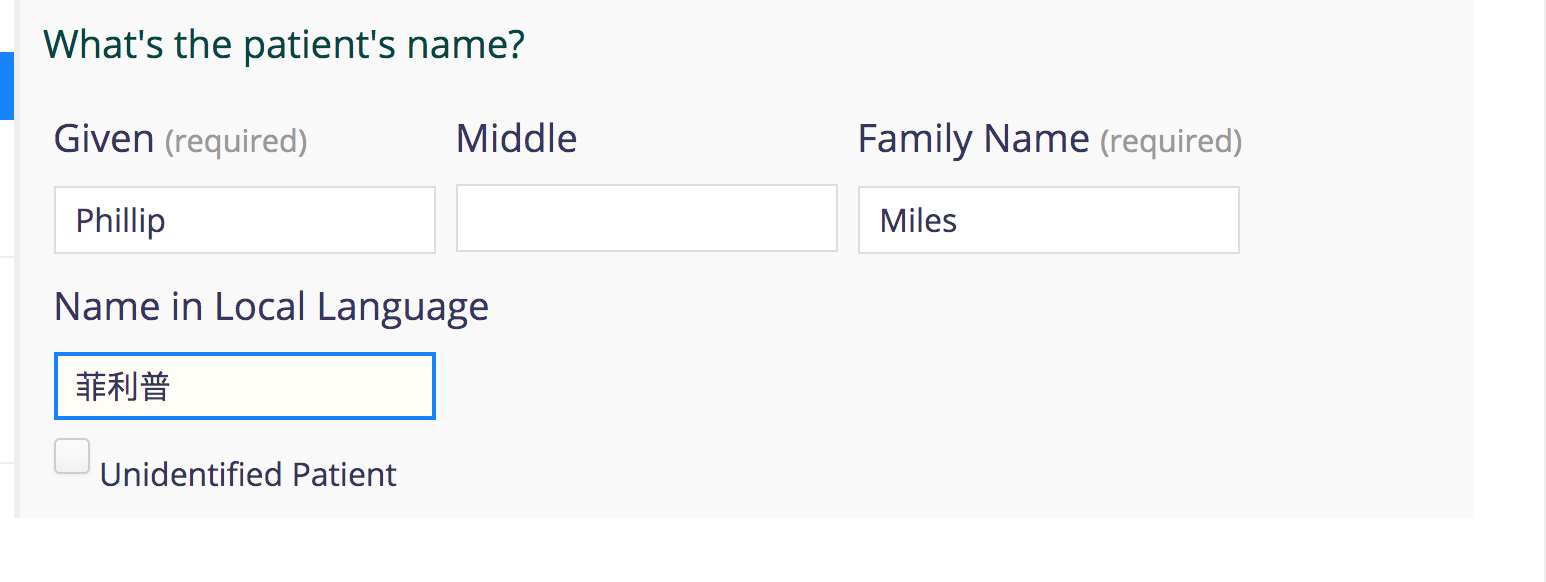
In the example above the label/legend registration.nameIn.localLanguage should be defined as message property.
The recorded name can be displayed in breadcrumbs of coreapps dashboards and patient header names as seen below by creating global properties that point to the personAttribute uuid above.
- extraPersonNames.personAttributeTypes=521fb07d-2bbd-4c6a-835f-6cf68ba97d43
- breadCrumbs.details.personAttr.uuids=521fb07d-2bbd-4c6a-835f-6cf68ba97d43

Additionally, another global property can be created to specify the formatters of the breadcrumbs as a semi-colon separated characters, for example;
- breadCrumbs.formatters= {;-;}. Note that this defaults to using an opening , comma + space and closing brackets like (;, ;) .

Collecting Additional Patient Identifiers in the Registration App
Support for collecting multiple patient identifiers is being introduced in Registration App v1.7, which is scheduled to be released in spring 2017. This support allows users to collect multiple person identifiers by configuring their own application.
What's not supported:
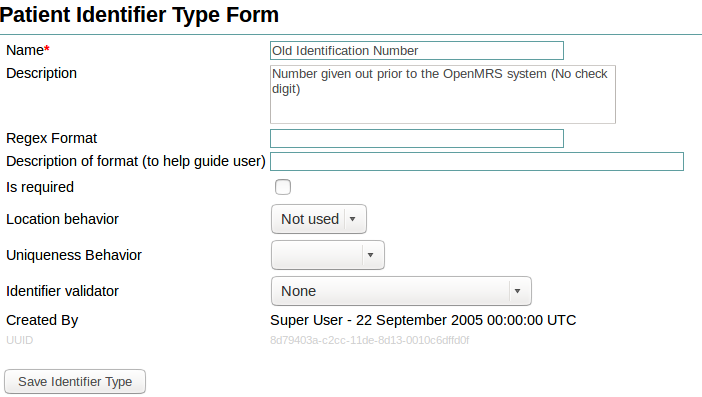
- Patient Identifier Type locations (This means that all location behaviors need to be set to "Not used" in the identifier type form)
Additional identifiers can be collected by adding a section in the config, just as you would when adding person attributes. The primary difference has to do with the field type which is "patientIdentifier" and the UUID is the UUID of the patient identifier, found in grey in the patient Identifier types page for that identifier.
- Find the UUID of the Patient Identifier Type(s) that you want to add to the Registration App.
- Go to System Administration --> Advanced Administration --> Patient Identifier Type Management
- Click on the name of the Patient Identifier Type, for example "Old Identification Number".
- You will find the UUID listed in grey, for example... 8d79403a-c2cc-11de-8d13-0010c6dffd0f
- Make sure to set the Location behavior to "Not Used" as you can see in this screenshot
- Open the App you created in the Initial Steps above.
In the list of sections you can add a new section. Sections and fields are separated with a comma. The code to add a section to collect the Old Identification Number is...
{
	"id": "patient-ids",
	"label": "Patient-Identifier",
	"questions": [
		{
			"legend": "Old Identification Number",
			"id": "Old_Identification_Number_patientIdentifier",
			"fields": [
				{
					"type": "patientIdentifier",
					"label": "Old Identification Number",
					"formFieldName": "oldIdentificationNumber",
					"uuid": "8d79403a-c2cc-11de-8d13-0010c6dffd0f",
					"widget": {
						"providerName": "uicommons",
						"fragmentId": "field/text"
					},
					"cssClasses": ["required"]
				}
			]
		}
	]
}
This allows you to collect the patient identifiers in the registration app, but it doesn't allow you to collect them elsewhere in the user interface. To add the ability to edit patient identifiers to the patient header in the clinician facing dashboard, you need to add the UUID of each identifier to the global property "emr.extraPatientIdentifierTypes":
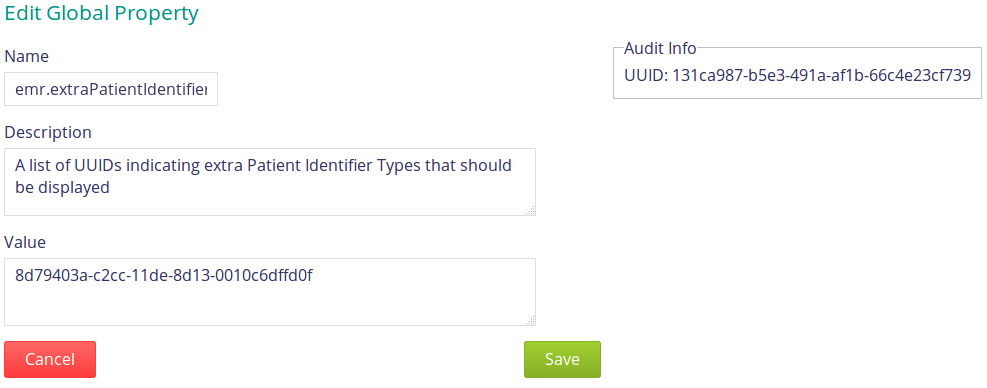
Here's where it's exposed in the UI where users can click on the identifier to edit it.

Configuring a dropdown widget that consumes a concept-set in the Registration App
A drop-down widget to capture Concept formatted person attributes types can be defined/configured as follows below. One can provide the options as a map of 'options', 'conceptSet' or both as seen in the below example.
{
    "id": "nationality",
    "legend": "Country of Origin",
    "fields": [{
        "label": "Country of Origin",
        "type": "personAttribute",
        "formFieldName": "nationality",
        "uuid": "personAttributeTypeUuid-of-format-org.openmrs.Concept",
        "widget": {
            "providerName": "registrationapp",
            "fragmentId": "field/dropDown",
            "config": {
                "formFieldName": "nationality",
                "conceptSet": "165657AAAAAAAAAAAAAAAAAAAAAAAAAAAAAA",
                "options": [{
                    "label": "",
                    "value": ""
                }],
                "initialValue": "",
                "hideEmptyLabel": true,
                "expanded": false
            }
        }
    }]
}
Integrating with a Master Patient Index
The next release of the Registration Core and Registration App modules will include initial support for integrating OpenMRS with a Master Patient Index (particularly, OpenEMPI).
When you enable this integration:
- (TBD)
Setup Master Patient Index configuration
Setting up Registration Open Web App
Note: The app needs to have an address field. If it does not, such as in the "registrationapp.basicRegisterPatient" (defined in openmrs-module-registrationapp/omod/src/main/resources/apps/registrationapp_app.json) you will receive the following errors:
ERROR - PixPatientExporter.exportPatient(47) |2018-06-25 15:07:18,328| java.util.NoSuchElementException
ERROR - PatientCreationListener.performMpiAction(71) |2018-06-25 15:07:18,339| PIX patient push exception occurred
this is because the fields sent to the MPI through PIX/PDQ is hardcoded (defined in openmrs-module-registrationcore/api/src/main/java/org/openmrs/module/registrationcore/api/mpi/pixpdq/PixPdqMessageUtil.java)
Thus, if you use a registration app that has all the required fields, such as the referenceapplication.registrationapp.registerPatient that comes with the reference application, it will not produce that error.
------------------------------------------------------------------------------------------------------------------------
OpenEMPI Specific Rest API Implementation of MPI functionality
- Developed by Roman Zayats
- See Google Summer of Code 2015 Project Page: Integrate Registration Module with a Master Patient Index
You have to setup some global properties:
- registrationcore.mpi.implementation : specifies which MPI implementation you are going to use. Since registrationcore v1.4 you can use OpenEMPI implementation.
- registrationcore.mpi.url : specifies url to MPI server Property type: string. Example: 128.100.10.10:8080/openempi-admin
- registrationcore.mpi.username : username for authentication on MPI server
- registrationcore.mpi.password : password for authentication on MPI server
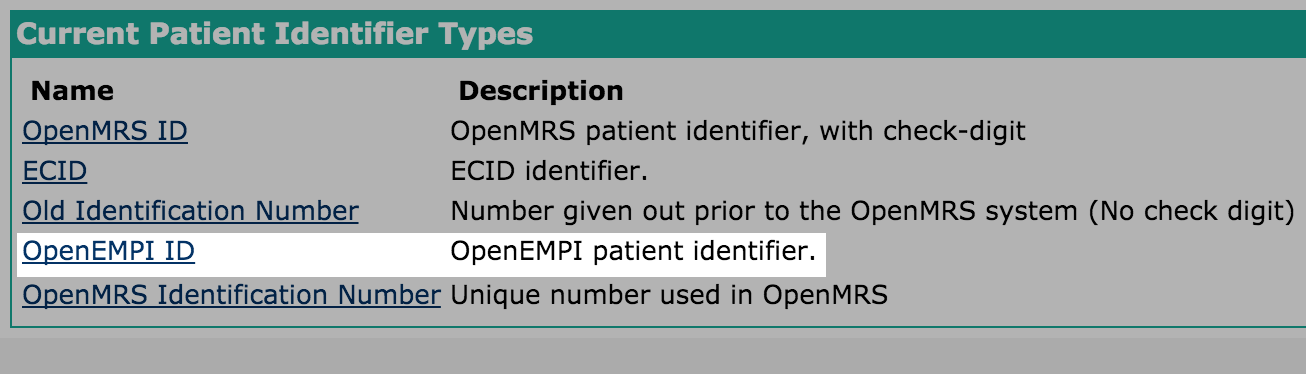
- registrationcore.mpi.personIdentifierId : specifies local patient identifier type id. Through this identifier imported MPI patient will be linked with patient on remote MPI server. You have to create new patient identifier type in Managing patient identifiers console:
OpenEMPI specific properties:
- registrationcore.openempi.globalIdentifierDomainId : specifies global identifier type at OpenEMPI server. You can find this value in your admin page at OpenEMPI server. Property type: integer.
- registrationcore.openempi.enableProbabilisticMatching : specifies whether system should search for similar patients. At registrationcore v1.4 this functionality is not supported, so it shopuld be turned off. Property type: boolean (true/false).
Mapping Local to Mpi identifiers:
To map identifiers from MPI server to local OpenMRS application, you have to specify how they map on each other. Of course, first of all you have to create proper identifier types in Managing patient identifiers console& (For example: you can see that in the screenshot above there is a ECID identifier, which was created for mapping).
How to specify mapping? You have to create property in Global properties which names:
registrationcore.local_mpi_identifierTypeMap.{name_of_identifier_type} : {local_identifier_type_id} : {mpi_identifier_type_id}
Example: registrationcore.local_mpi_identifierTypeMap.ECID : 5:60
------------------------------------------------------------------------------------
Integrating with fingerprinting and other biometrics
To configure the registration app to support the collection of patient fingerprints and other biometrics, please refer to this page.
Related articles