Set Up OpenMRS Server with OpenMRS SDK and Docker
- rain bow
- Evan Waterman
- Juliet Wamalwa
You can set up an OpenMRS server on your computer for testing and debugging modules. With OpenMRS SDK and Docker, you can set up the OpenMRS server very easily with a step of installing MySQL 5.6; a separate installation of MySQL server is not needed.
This instruction applies to both Windows 10 and Ubuntu.
Prerequisite
Before start, make sure:
- You have installed:
If you are using Windows 10, you need to use PowerShell as Administrator; if you are using Ubuntu, you need to be the root user.
To enter the root user mode on Ubuntu, type the following on your terminal window:sudo -i sudo -s
Note: Without PowerShell or root user mode, the installation will fail.3.Windows users may also need to swap the SDK over to using TCP instead of HTTP connections. You can expose Docker via TCP (instead of just via HTTP) via Docker Desktop through the following setting:
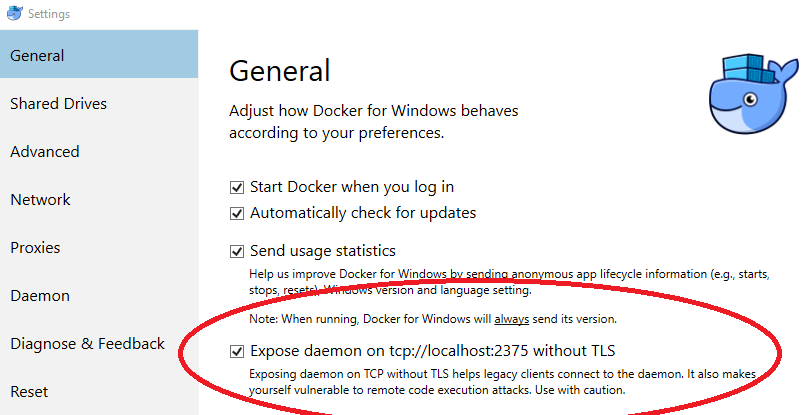
You'll also need to modify the dockerHost in the SDK properties file (found in C:\Users\“youruser”\openmrs\sdk.properties). Change the "dockerHost=http://127.0.0.1:2375/" line to "dockerHost=tcp://127.0.0.1:2375".
Without this you may encounter the following error: "Unsupported protocol scheme found: 'http://127.0.0.1:2375/". More info here.
Install OpenMRS SDK
To install OpenMRS SDK on your system, type:
mvn org.openmrs.maven.plugins:openmrs-sdk-maven-plugin:setup-sdk
To test the installation, type:
mvn openmrs-sdk:help
When the installation is successful, the screen displays:[INFO] Scanning for projects... [INFO] [INFO] ------------------< org.apache.maven:standalone-pom >------------------- [INFO] Building Maven Stub Project (No POM) 1 [INFO] --------------------------------[ pom ]--------------------------------- [INFO] [INFO] --- openmrs-sdk-maven-plugin:3.13.6:help (default-cli) @ standalone-pom --- OpenMRS SDK 3.13.6
For more info, see SDK documentation: https://openmrs.atlassian.net/wiki/display/docs/OpenMRS+SDK
Set Up OpenMRS Server
With OpenMRS SDK, You can either install OpenMRS platform or OpenMRS distribution on your system. OpenMRS platform has no user interface. If you want to see basic OpenMRS functions, choose distribution. You can also run multiple servers of different types in parallel.
Start the installation by typing the command:
mvn openmrs-sdk:setup
- Enter your server ID at the prompt.
- To choose server type, select 1 for distribution.
- Select distribution version.
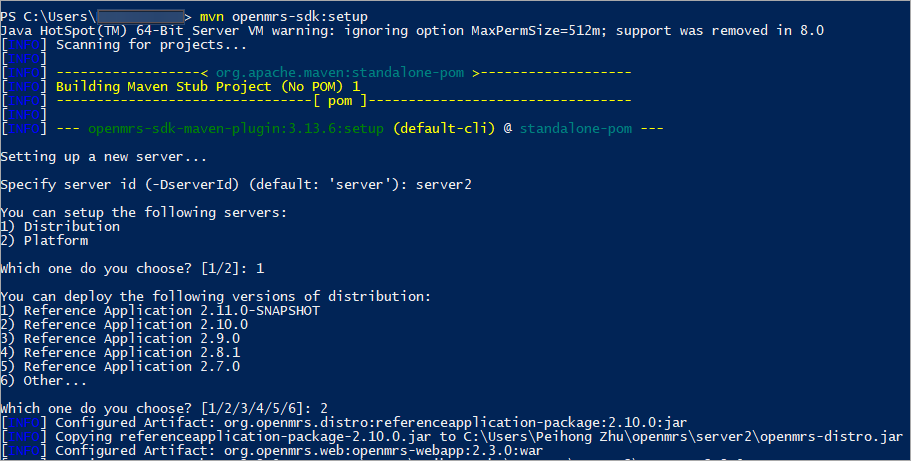
- Set the port to default 8080.
- Set the port for remote debug to 1044.
- To choose MySQL installation method, select 2.

SDK starts to install MySQL 5.6 in a docker container.
Note: Make sure you have installed Docker and it is running. - For Ubuntu, select 1. (JAVA_HOME) as the JDK for the server.
For Windows, this step is automatic.
When the process is complete, the screen displays a “Server configured successfully…” message.
Run OpenMRS Server
To run the OpenMRS server, type:
mvn openmrs-sdk:run -DserverId=your_server_id
When the server starts successfully, the output at bottom of the terminal window displays:
OpenMRS is ready for you at http://localhost:8080/openmrs/
Log In to OpenMRS Server
Now you can visit the OpenMRS server.
- Open a browser, type in the server url: http://localhost:8080/openmrs/
- Wait till the initialization process is complete then login with:
Username: Admin
Password: Admin123
You have completed setting up OpenMRS SDK and server. To learn more about OpenMRS SDK go to: OpenMRS SDK, or OpenMRS SDK Step by Step Tutorials.